
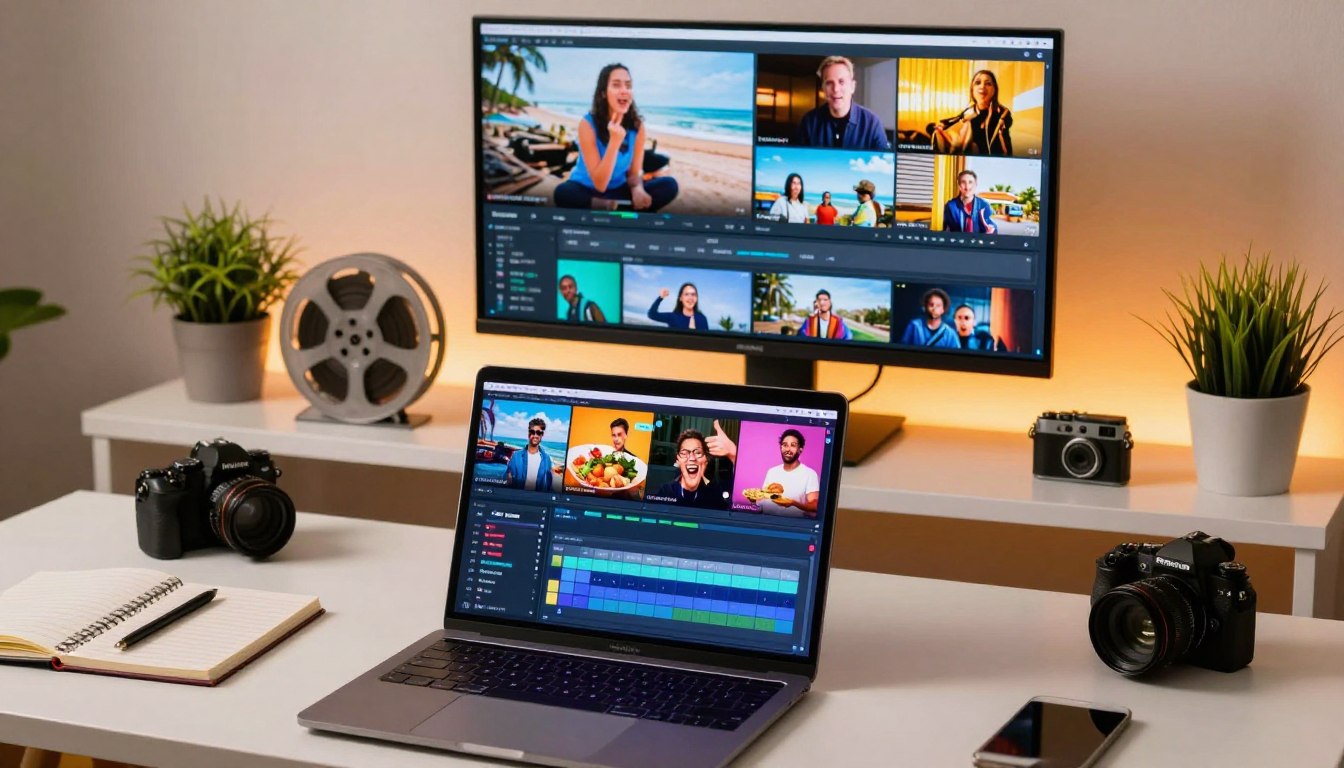
Free Copyright-Safe Videos for YouTube Shorts
“Creativity takes courage,” wrote Henri Matisse — a reminder that bold posting should pair with smart permissions.
This guide delivers a practical, creator-friendly listicle of vetted sources plus editing workflows to keep your clips safe and monetization-ready. It targets U.S. creators, brands, and social media managers who need reliable assets without legal surprises.

You’ll learn how using cleared footage helps reduce claims and takedowns, so reach stays steady and publishing moves fast. Expect fewer strikes, quicker edits, and more freedom to follow trends.
Note: “free” does not replace due diligence. Always check license terms per clip — rules vary by platform and asset type. The article covers curated stock sites, CapCut’s stock library, and an AI repurposing option to turn long clips into shorts.
The structure flows from fundamentals (terms and specs) to selection strategy, curated sources, step-by-step editing, timing tips, and a concise wrap-up to help you act fast.
Key Takeaways
- Find practical sources and editing workflows to keep posts claim-safe.
- Designed for U.S. creators, brands, and social managers needing reliable assets.
- Using cleared footage reduces strikes and takedowns while improving reach.
- Always verify license terms per clip; platform rules can differ.
- Includes curated stock sites, CapCut stock, and an AI repurposing method.
- Article layout: basics → selection → sources → editing → timing tips → wrap-up.
Why creators need copyright-safe video content for YouTube Shorts right now
A muted or removed Short can quickly derail a posting schedule and erode audience trust.
Creators who publish short-form clips face real risks. Using uncleared clips often leads to strikes and repeated claims that restrict posting. That can reduce reach and create long-term channel risk for anyone posting short videos at scale.
Avoid strikes, takedowns, and channel risk
One strike can limit uploads and damage trust with viewers. Repeated claims may lead to channel penalties or bans, which interrupts growth and destroys momentum.
Keep monetization-ready and brand-safe
Brands and advertisers prefer rights-cleared content. Ownership matters for monetization eligibility and sponsorship deals that depend on reliable, brand-safe content.
Protect reach when clips are blocked or muted
Rights holders can mute or restrict distribution. Even a single muted Short can reduce impressions and derail a posting cadence.
Unlock creative freedom and fast trend participation
Using cleared libraries lets creators join challenges, make quick explainers, and keep the audience engaged without scrambling for permissions. This guide is a prevention-first playbook: find safe sources, verify licenses, edit for originality, and publish consistently.
What “copyright-free,” “royalty-free,” and “public domain” actually mean for short videos
Labels like “royalty-free” or “public domain” sound simple, but their rights can differ widely. Read each license before you download any clip or image. Marketing language often shortens the true legal limits.
Royalty-free stock vs. public-domain footage
Royalty-free stock lets you use a clip under set terms — usually once you agree to the license. Rules can include commercial limits or platform restrictions.
Public-domain material has no copyright protections and is the safest choice if you need unlimited reuse. That difference matters when you publish short video content to big platforms.
Common license pitfalls creators miss
- Attribution requirements that demand credit in descriptions.
- Editorial-only tags restricting use to news or documentary contexts.
- Resale limits preventing redistribution of raw clips as standalone assets.
Also remember: mixed media projects add layered rights for music, images, and clips. Simple rule to follow: verify the license at download, save proof, and avoid questionable uploads.
YouTube Shorts specs to match when you use stock footage and clips
Start with the right frame and duration so your clip looks native on mobile feeds and keeps viewers watching.
Exact format: set projects to vertical 9:16 at 1920×1080 before any editing. This preserves sharpness and avoids black bars or soft scaling when you export.
Length: aim between 15 and 60 seconds. That window forces tighter pacing than long-form work and changes how you choose and trim clips.
Reframing and composition
Many stock clips are horizontal and need reframing. Crop to keep the subject centered and readable on small screens.
Plan safe zones so captions, text, and UI overlays don’t cover faces or key action. Leave space at the top and bottom for timestamps and buttons.
| Spec | Why it matters | Quick action |
|---|---|---|
| 9:16, 1920×1080 | Keeps clarity on mobile feeds | Set sequence before import |
| 15–60 sec | Boosts retention and pacing | Trim to core moment |
| Centered composition | Ensures readability with captions | Crop, zoom, or reframe |
Editing tips: use zoom, speed ramps, and color tweaks to make common stock feel fresh. These choices improve first-second hooks and set up the next section on how to pick the right footage for your niche.
How to pick the right copyright-free footage for your audience and niche
Start by picking a visual that answers the viewer’s question in one look.
Hook-first visuals must communicate the topic in the first second. Choose a bold close-up, clear action, or readable text overlay. This helps short clips stop the scroll and set expectations fast.
Hook-first visuals that work
Use a subject-centered frame or an obvious motion cue. Match color and contrast to your brand so the opening frame reads on small screens.
B-roll that supports voiceover and on-screen text
Pick b-roll that leaves visual space for captions and titles. Shots with negative space make captions legible and keep the viewer focused on your message.
Match clips to the script so the footage backs the narration. This improves retention and makes it easier to create engaging content consistently.
How to avoid overused clips and keep content original
Spot generic shots by searching results and noting repeats. If a clip appears on multiple channels, swap to a different angle or crop into a detail.
Differentiate with speed changes, color grading, and layered text. These small edits turn common stock footage into a unique piece that fits your niche—business, fitness, travel, or entertainment.
Build a repeatable system: save go-to clips, tag them by niche, and add simple edit presets. That keeps your content creation fast while delivering fresh, engaging content to your audience.
Copyright free video for YouTube shorts: the curated list of free sources
Start with a short list of vetted sources that match creator workflows and platform rules.
List criteria: sites must offer clear licensing, easy search, and clips suited to social media edits.
What each source is best at
- CapCut — vertical-ready stock and built-in editing tools.
- Pexels — large library of b-roll and candid footage.
- Pixabay — backgrounds and quick cutaways.
- Coverr — business and nature b-roll.
- Shutterstock — premium standouts and filters for unique stock video.
- Vidsplay — action, food, and social-first clips.
- Videvo — motion graphics and effects packs.
- MixKit — ready-to-use clips plus music and audio.
Quick checklist before you upload video
- Confirm license type and commercial use allowance.
- Check attribution and avoid editorial-only footage for brand work.
- Save proof: license page screenshot, download receipt, creator link.
- Add original edits: voiceover, captions, speed or color changes to reduce reused-content flags.
Next: CapCut combines stock and editing tools to speed Shorts production.
CapCut desktop video editor stock library for copyright-safe Shorts
CapCut desktop bundles an integrated stock library that keeps editors working inside one fast workflow.
All-in-one editing saves time. The desktop app combines searchable stock videos, templates, and AI tools so you don’t need multiple downloads or extra accounts.
Copyright-free stock videos built into the editor
Built-in clips speed up output when you must post consistently. Pick a clip, drag it to the timeline, and trim. This reduces time spent hunting assets and lets teams focus on creative edits.
Customizable templates for fast short video production
Templates give a ready-made structure for youtube shorts. Replace clips, add branding, and tweak text to make each piece unique. The template library helps creators create youtube-ready posts quickly.
Video and audio effects to elevate engagement
Editing tools include transitions, filters, and sound design. Add music, stingers, and subtle motion to boost retention without leaving the editor.
Adjustable aspect ratios for quick reframing
Switch to 9:16 in one click to reframe horizontal clips. This makes it easy to adapt existing assets to the vertical feed and keep composition tight.
AI voice tools for narration and comedic formats
Built-in text-to-speech and voice changers speed voiceovers and sketches. Use these to add original narration or playful characters while keeping the workflow inside one editor.
| Feature | Benefit | Best use |
|---|---|---|
| Integrated stock | Faster sourcing and fewer downloads | Batch production of shorts |
| Templates | Consistent formatting and speed | Create YouTube-ready edits |
| Effects & music | Higher retention and polish | Hooks, transitions, sound design |
| Aspect ratios | Simple reframing to 9:16 | Vertical-first posting |
How to edit copyright-free videos in CapCut for YouTube Shorts
CapCut lets creators move from asset pickup to upload in a few focused steps, which keeps publishing fast and predictable.
Start by importing your own clip or open the Stock materials library inside CapCut. Search by genre, preview clips, then download the chosen asset and drag it to the timeline. This workflow keeps content rights clear and speeds initial setup.
Import or pick stock
Use the import button for local files or browse Stock by category. Narrow results by theme, then place the clip on the timeline to mark the hook point.
Effects, pacing, and color
Add transitions to control pacing and keep viewers engaged. Use speed changes to emphasize moments and create punchy timing. Apply simple color correction to match brand tones and keep a consistent look across short video edits.
Auto captions to boost retention
Create captions with CapCut’s auto-caption tool. Edit timing and line breaks so text is readable on small screens. Captions increase accessibility and help viewers stay through the first key seconds.
Export and upload
Before export, confirm vertical 9:16 framing, clear audio levels, and sharp on-screen text. Use high bitrate and H.264 to preserve clarity. Then share directly to YouTube to reduce friction and keep a steady publishing rhythm that helps you create engaging videos youtube and maintain schedule.
| Step | Action | Why it matters |
|---|---|---|
| Import | Local files or Stock library | Fast start; rights-checked assets |
| Edit | Effects, transitions, speed | Improves retention and pacing |
| Polish | Color correction, audio clean-up | Consistent brand look |
| Captions | Auto captions + manual tweaks | Accessibility and watch time |
| Export | 9:16, high bitrate, H.264 | Sharp uploads and platform-ready files |
Pexels for no-copyright short videos and high-quality stock footage
When you need reliable, ready-to-edit media fast, Pexels is often the first stop.
Strengths: Pexels hosts a large library with clear categories and simple search tools. This makes it easy for creators to find stock footage that fits a fast publishing cadence.
Why it speeds up planning
The site’s filters and strong category coverage cut sourcing time. When posting daily, that speed helps you lock in hooks and captions without long hunts for the right b-roll.
Common use cases
- Nature b-roll behind quote overlays.
- Cityscapes to support commentary clips.
- Lifestyle shots for product storytelling and ads.
Limitations and fixes
Some niche topics are underrepresented, and popular clips can feel seen across many channels.
Mitigate this by combining multiple clips, cropping or reframing to create a fresh angle, and adding original narration to make the content unique.
Quick license habit
Even on reputable sites, always check the license and save proof of download. That small step protects channels and keeps uploads ready for YouTube Shorts and other platforms.
Pixabay for free video clips and images for Shorts
Pixabay gives creators a fast library of clips and images that work well when speed matters.
What it offers: Pixabay lets you download videos and images with no attribution required. The site is easy to navigate, which helps creators build a backlog of stock assets quickly.
Why it works for entertainment and quick social media edits
Pixabay is great for light, engaging entertainment posts and simple backgrounds. Use short clips as b-roll, add captions, and layer text to make snackable content that hooks fast.
Tradeoffs and workflow
Some clips feel generic, so plan edits that add personality: crop, color grade, and tweak pacing. Because Pixabay lacks built-in editing, pair downloads with an editor like CapCut to finish and export for youtube shorts.
- Download sets of background clips to speed batch production.
- Make multiple versions with different hooks and on-screen text.
- Save license proof at download to protect uploads.
Coverr for quick downloads of royalty-free stock video
For creators who value speed and clarity, Coverr’s library is a tidy, easy-to-scan option. It hosts high-quality, royalty-free stock with straightforward downloads that cut friction during production.
Why it speeds content creation: the site lets you grab videos in a couple of clicks. Search, preview, and download without attribution steps—helpful when publishing often.
Best-fit categories
- Business scenes for quick tip clips and explainers.
- Nature b-roll that supports narration and mood pieces.
- General-purpose footage to back talking-heads and overlays.
Considerations and workflow tips
Coverr’s collection is smaller than major stock libraries, so widen search terms or use it as a supplemental source when you can’t find a niche clip.
Pair Coverr clips with original voiceover, captions, and color tweaks to make simple footage feel unique. Pick visually clean shots with negative space so branding and text remain legible on youtube shorts.
“No attribution required eases fast publishing, but always check the license on each clip.”
Shutterstock as a hybrid option for free and premium stock footage
Shutterstock mixes a small set of complimentary clips with a large premium library aimed at higher-end production needs. This makes it useful when you want one showpiece clip without sacrificing findability.
When premium makes sense: pick paid footage for hero shots, product launches, ads, or any Short that must look distinct from everyday b-roll. Premium clips often have superior framing, motion, and color that reduce time in post.
How to use filters to find Shorts-friendly clips faster
Use orientation filters to surface vertical or tall-aspect clips. Narrow by category—people, nature, or lifestyle—to match your script quickly.
Filter by duration to hit the 15–60 second window and sort by newest or most relevant to avoid overused assets. These steps speed production and help pick clips that read well on mobile.
Budget realities and pragmatic workflows
Shutterstock’s premium tiers can be costly for small creators. Use complimentary clips or lower-cost sites for bulk content, and reserve paid purchases for flagship posts.
- Combine one premium clip with multiple lower-cost b-roll assets to balance originality and budget.
- Always download and store license receipts and purchase confirmations to simplify any dispute or claim.
Vidsplay for fresh stock videos across popular Shorts categories
If you need fresh angles in action or food scenes, Vidsplay surfaces newer footage that performs well on mobile feeds.
What it’s good at: Vidsplay publishes high-quality clips across action, food, and nature. These categories work well when you want punchy, attention-grabbing content for social media. Action clips fuel fast edits; food prep shots create satisfying loops; nature footage supports calm, narrative-driven pieces.

What to expect
Vidsplay often requires an account to download. That step adds a small delay compared to instant grabs, so plan for it in tight workflows.
Toolset note: Vidsplay is a source library. It does not replace an editor. Use CapCut or similar to reframe, caption, and polish short videos before upload.
Quick workflow tips
- Build a “category pack” of downloads (action, food, nature) to speed future edits.
- Keep a simple log of each asset and its license notes to stay compliant.
- Combine Vidsplay clips with original narration or color tweaks to avoid repeat footage fatigue.
“Download groups by category and log licenses — small systems save big time on repeat production.”
Videvo for royalty-free footage plus motion graphics and animations
Videvo blends motion graphics, animations, and traditional clips into a single library that helps creators add polish fast.
Mixing free and premium to scale output
Mix paid and unpaid assets strategically: reserve premium purchases for hero shots and use simpler clips or animations to fill bulk edits. This approach stretches budgets while keeping a high-quality look across uploads.
Watch-outs: watermarks and restrictions
Free sections may include watermarked files or extra restrictions. Always check the exact license type when you download and save the license note with your project files.
- Ideal use cases: animated backgrounds behind captions, quick lower-thirds, and transitions that sharpen pacing.
- Confirm license terms per asset and store proof with each edit to avoid surprises.
- Pair Videvo animations with original narration to create unique content and boost retention.
Quick tip: treat Videvo as a media toolbox — use motion elements to make short edits feel custom without rebuilding every scene from scratch.
MixKit for copyright-free short videos plus music and audio tracks
When deadlines loom, MixKit lets you download ready-to-edit clips and music in seconds.
Why it works: MixKit pairs high-quality stock videos and music without requiring sign-up. That removes account friction and speeds content creation for creators in the U.S. who publish frequent youtube shorts or social reels.
How to pair MixKit visuals with background music safely
Treat visuals and tracks as separate assets. Verify the license on each clip and each music track before you edit. Save a screenshot or download receipt as proof of permission.
Practical pairings: use a looping MixKit background with bold captions for motivational content, or pair upbeat music with quick product clips to add energy. Add a short voiceover and unique timing so the final piece feels original.
Limitations: the library is smaller than paid services and offers limited customization tools. Use MixKit as a dependable starter pack, then rotate in other stock sources to keep your channel fresh and avoid repetition.
- Fast downloads = faster publish cycles.
- Two-in-one resource: visuals plus music simplifies sourcing for media entertainment and content creation.
- Always save license proof and add original voice or text to make clips feel custom.
Use AI to turn long videos into short clips with Vizard’s YouTube Shorts Maker
Vizard positions itself as an AI-first option to repurpose long-form assets into fast, platform-ready edits. It speeds projects by letting teams upload by link or file and begin work without manual scrubbing.
Upload by link or file to start fast
Upload video from a YouTube link or a local file to load transcripts and timelines instantly. That is a big time-saver for podcasts, webinars, and interviews.
AI Short Clips and Speaker Smart Cut
AI Short Clips auto-pull high-engagement moments so you can create engaging content without hunting through hours of footage.
Speaker Smart Cut and auto-focus keep faces centered in vertical framing, which helps repurpose multi-speaker recordings into clean, mobile-ready edits.
Subtitles, translation, and performance tools
Auto captions cover 30+ subtitle languages and translate into 130 languages to broaden reach. An AI virality score and auto-generated captions, titles, descriptions, and hashtags guide social media posting.
Export and publish
Export and publish to YouTube with connected accounts and team workspace access, so the final steps are simple and repeatable when you batch-produce shorts.
Tips to create copyright-safe funny Shorts with stock footage, music, and effects
Make your comedy clips stand out while keeping every element cleared and traceable.
Start by clearing music and effects. Use royalty-free stock libraries or paid tracks with clear commercial licenses. Save license pages or receipts and note any attribution rules before you edit.
Trending audio from outside approved libraries often causes claims. Verify each clip and sound before you add it to a project.

Make it yours with voice
Add your own voiceover or use text-to-speech to give stock clips a personal touch. Original narration reduces reused-content flags and makes the humor feel creator-led.
Build punchlines with layered b-roll
Structure jokes by setting up with supportive b-roll, then cut to a reaction or close-up on the beat. Use quick zooms and a surprise cut to land laughs.
Use editing tools to nail timing
Free editors like CapCut offer captions, speed ramps, and sound placement. These editing tools help you create meme-style timing: jump cuts, synced SFX, and caption timing that amplify jokes.
Blend old and new clips
Combine public-domain footage with modern stock clips to create a unique look. That mix gives your content a fresh texture and lowers the chance of matching another creator’s edit.
| Tip | Action | Why it matters |
|---|---|---|
| Music & effects | Verify license, save proof | Prevents claims and monetization holds |
| Voiceovers / TTS | Record original lines or use TTS | Adds unique creator touch |
| Punchline structure | Set up → cut on beat → reaction | Improves laugh timing and retention |
| Editing tools | Captions, ramps, SFX placement | Boosts comedic impact and accessibility |
Conclusion
Conclusion
Close your workflow loop by choosing reliable sources and a single editor to keep uploads steady.
Use Pexels, Pixabay, Coverr, Shutterstock, Vidsplay, Videvo and MixKit plus CapCut to protect your channel and keep videos accessible and monetizable. Add Vizard to repurpose long clips quickly and save editing time.
Outcome: fewer claims, steadier reach, and fewer monetization setbacks across videos YouTube Shorts viewers actually see. Pick a niche-aligned clip, set 9:16 framing, add captions or voiceover, and publish on a schedule to create momentum.
Simple next step: bookmark two or three sources and batch-produce several pieces this week. Consistent compliance and original edits help creators scale and create engaging content that lasts.
FAQ
What does “royalty-free” mean for short clips used in Shorts?
Royalty-free means you pay once (or not at all) and then use the clip without ongoing fees. It does not always mean you can do anything with the footage. Read the license: some require attribution, forbid resale, or limit commercial use.
How does public domain footage differ from stock labeled royalty-free?
Public domain works have no copyright restrictions and can be used with no permissions. Royalty-free stock still carries license terms from the provider. Treat public domain as the most permissive option, but verify provenance before publishing.
Which technical specs should I match when using stock clips for vertical Shorts?
Aim for 9:16 vertical, at least 1080×1920 pixels. Keep clips within 15–60 seconds and check bitrate and frame rate to avoid quality loss when editing or exporting.
Can I reframe or crop horizontal stock clips for vertical formats?
Yes. Cropping and reframing are common, but make sure the key action remains visible and avoid stretching. Some editors offer smart reframing to keep subjects centered for vertical outputs.
What quick checklist confirms a clip is safe to upload?
Verify license type, confirm commercial use if needed, check for model and property releases, ensure no trademarked logos dominate the frame, and keep a record of the license or download page.
Which free sources work best for b-roll, backgrounds, and vertical clips?
Platforms like Pexels and Pixabay excel at b-roll and general backgrounds. Mixkit and Coverr are fast for no-signup downloads. Use Videvo and Vidsplay when you need motion graphics or niche action shots.
When should I choose premium stock like Shutterstock?
Use premium when you need exclusive or high-production visuals that stand out. Paid tiers offer advanced filters, vertical-ready clips, and higher-resolution options for brand-level content.
How do I avoid overused clips that make Shorts feel generic?
Look for unique angles, mix public-domain material with modern stock, and tweak footage with color grading, speed ramps, and overlays. Custom voiceover or captions can also refresh common clips.
What are common license rules creators often miss?
Creators forget attribution requirements, editorial-only restrictions, and bans on using clips for resale or trademarked promotions. Always scan the license for these clauses before publishing.
Are music and sound effects included with stock clips?
Not always. Some libraries bundle audio, others offer separate tracks. Use dedicated royalty-free music libraries or CapCut’s built-in audio, and confirm usage rights for commercial uploads.
How can CapCut help produce Shorts quickly with safe stock assets?
CapCut includes an in-editor stock library, templates optimized for short formats, aspect-ratio adjustments, and audio tools. These features speed up editing while keeping track of licensed assets.
What editing steps should I follow in CapCut for Shorts?
Import or choose stock clips, trim to a strong hook in the first second, add voiceover or captions, include transitions and effects, auto-generate subtitles, then export at vertical 9:16 for upload.
Can AI tools turn long-form content into Shorts automatically?
Yes. Tools like Vizard’s Shorts Maker can scan long files, identify high-engagement moments, create short clips, add captions, and suggest hashtags. Always verify rights for any source footage before repurposing.
What should I check for model or property releases?
If people or private property are recognizable, ensure the stock provider supplies releases. Without releases, some clips may be restricted to editorial or noncommercial use only.
How do I keep Shorts monetization-ready and brand-safe?
Use licensed assets cleared for commercial use, avoid trademarked logos or brand names without permission, and follow platform content guidelines to reduce the risk of strikes or demonetization.
How can creators add originality when using pre-made clips and templates?
Layer unique voiceovers, custom captions, original music, and creative edits like split screens or animated text. Combine multiple clips and add punchy timing to create a fresh narrative.
Are there limitations when mixing free and premium assets in a single Short?
Mixing is allowed if each asset’s license permits your intended use. Keep documentation for each item and respect the most restrictive terms among the elements you combine.
What are best practices for attribution when it’s required?
Include clear credit in the video description or on-screen text as specified by the license. Save a screenshot or link to the license page in your project files in case you need to prove compliance.
How do I protect reach when rights holders claim content?
Keep license records, use platform dispute tools with proof of rights, and avoid reused clips that frequently trigger claims. When possible, choose sources with track records of safe licensing.
Which platforms offer vertical-ready and Shorts-friendly filters to speed searches?
Shutterstock, Pexels, and Mixkit include vertical or portrait filters. Use those filters and aspect-ratio tags to find clips that need minimal reframing for Shorts.
How do I verify a clip’s provenance before publishing?
Check the original download page, review license terms, note the creator and upload date, and keep a copy of the license or a screenshot in your project folder for future reference.
Can I monetize content that uses public-domain clips and modern stock together?
Yes, typically—if the modern stock items allow commercial use. Confirm each clip’s commercial permissions and retain records to support monetization requirements.